
Built with AI: VoiceHelper Voice to Text Solution Launch
The app worked. It wasn’t a product.
A terminal window I couldn’t close
For months, using my own speech to text app meant opening a terminal, activating a virtual environment, and typing a command. Then leaving that window open all day. If I closed it, the app died. That’s not a product. That’s a science experiment with good manners.
I’d been telling myself it was fine because it worked. It did work. It transcribed my voice, cleaned up my rambling, and filed notes into an obsidian note-taking system, doing it well enough that I used it every day. The problem was the word “my.” It ran on my machine, with my Python install, in my terminal, under my patience.
Anyone else who wanted it would have needed a walkthrough, a package manager, and a reason to trust me. Nobody has that kind of time.
What it does, in one breath
VoiceHelper is a macOS menu bar app for voice to text conversion. Press a hotkey anywhere, talk, press it again, and polished text lands where your cursor already was. Press a different hotkey with text highlighted and it goes straight into an Obsidian note, tagged, with the source URL attached. The cleanup between your voice and that text is the whole point, and the rest of this post is what it took to make the thing installable by someone who isn’t me.
Why “runs on my machine” isn’t shipping
There’s a gap between working code and a product, and the gap is made almost entirely of things that have nothing to do with your idea. Code signing. Permission models. What happens when the laptop sleeps. What happens when the process crashes at 3am. What happens on a Mac that has never had Python installed and never will.
I’d been circling that gap for months. Every time I got close, something in the build broke in a way I couldn’t read, and I’d go back to the terminal window that worked—like trying to debug a voice to text system in an obsidian note that keeps mishearing your commands. Solving it became the work.
The app you can finally double-click
It’s out, and it’s the app I couldn’t find anywhere else
VoiceHelper is available now, as a signed Mac app you double-click. That sentence took considerably longer to earn than it takes to read.
I didn’t set out to make a product. I went looking for one. I tried a lot of voice apps over the past couple of years, and every one of them was good at the part I cared least about. They transcribed accurately. Fine. Accurate transcription of how I actually talk is still a mess, because how I actually talk is a mess. What I wanted was the cleanup, in my language or another one, going somewhere permanent rather than into a clipboard I’d overwrite ten minutes later.
Nothing did all three. Some did the first, a couple did the second, and none of them talked to Obsidian in a way that felt like anything other than an afterthought. So I built the thing I’d been trying to buy, and then kept using it every day while it was still held together by a terminal window.
It’s shaped around how I work, which means it’s opinionated in places. Three minutes per recording, two languages assigned to two hotkeys, and three obsidian notes you can append to without thinking. Those aren’t compromises I settled for, they’re choices I made on purpose after months of being my own least patient user.
That’s the honest pitch. This is a tool built by someone who needed it, not a feature list assembled by someone doing market research. If your problems look like mine, it’ll fit like it was measured for you. It was.
Press one key to use a speech to text app and stop thinking about it
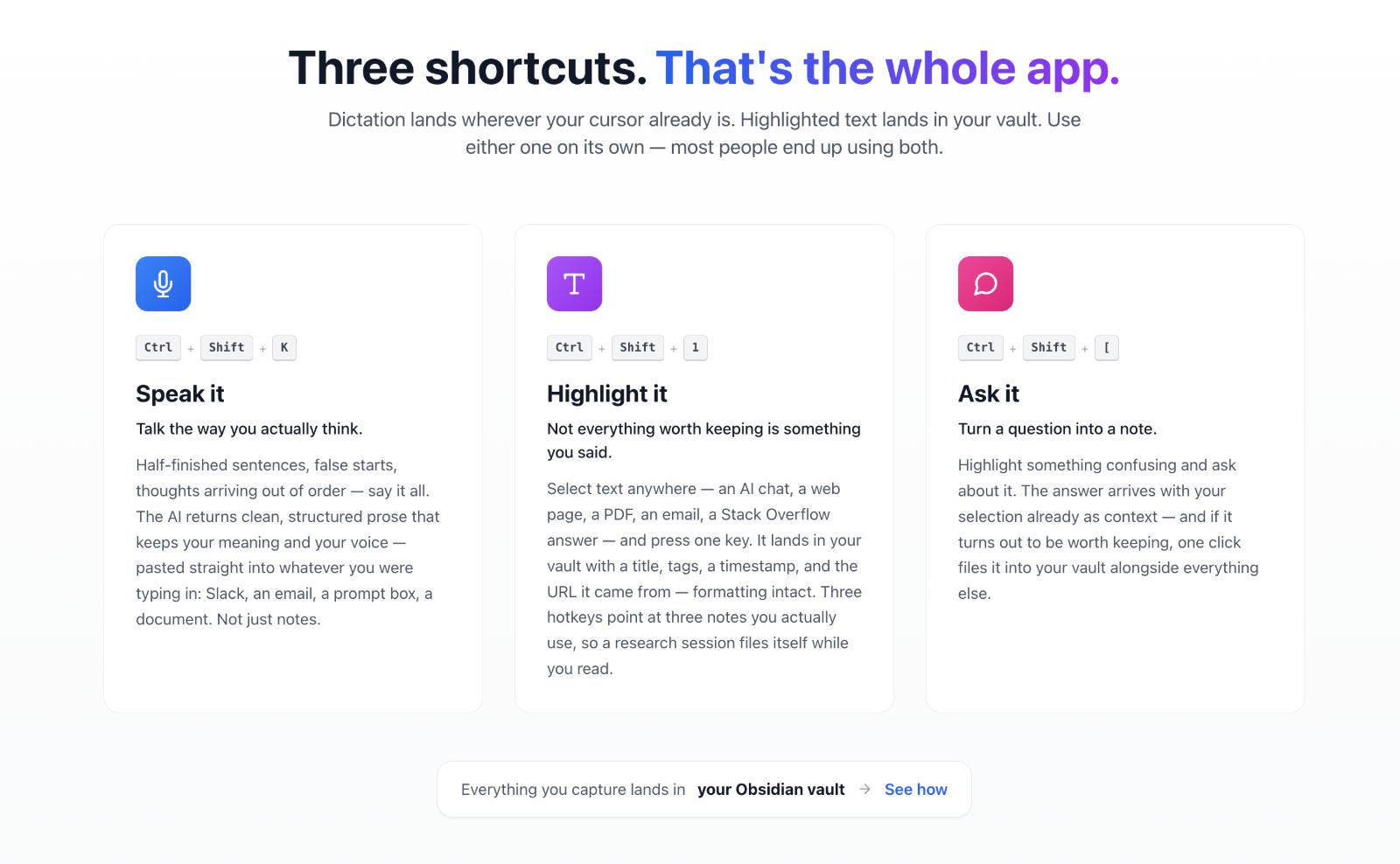
The interaction is deliberately dumb. Press Ctrl+Shift+K anywhere on the Mac, a small timer appears in the corner, and you talk. Press it again and polished text lands wherever your cursor already was. Slack, an email, a code comment, a prompt box, a Google Doc. The app doesn’t care which window you’re in and never asks you to open it.
The timer counts down from three minutes and cancels itself at 3:05, which sounds restrictive until you notice how rarely a single thought runs longer than that. It also stops the failure mode where you forget you’re recording and hand the AI eleven minutes of your kitchen.
The part that took the longest to get right isn’t the transcription. It’s what happens after. A plain transcript of how people actually speak is close to unusable: false starts, sentences abandoned halfway, the same idea circled three times with better wording each pass. What lands after the cleanup reads like you wrote it deliberately. Punctuation, paragraph breaks, filler gone, meaning intact.
I built that pass for myself. I have ADD, my thoughts stack up faster than I can finish sentences, and for most of my life the gap between what I meant and what came out was just something I lived with. Now I talk, and the version that arrives is the one I meant. If that sounds like a small thing, you probably don’t have this problem.
Speak your language, publish theirs
Each hotkey carries its own output language, and that one decision turns a speech to text app into something else entirely.
Speak Russian into the hotkey set to English, and English comes out. Not a translation you then have to paste somewhere, just English text appearing where you were already typing. Reverse it and the same thing happens in the other direction: highlight an English paragraph, press your secondary hotkey, and read it in your own language.
Ninety-nine languages, any two of them assigned as your primary and secondary. Nothing to open, no tab to switch to, no dialog asking you to confirm the source language.
What this actually buys you is access. Most of the good tools, most of the good documentation, and most of the people you’d want to sell to speak English. If your English is shaky, that’s a wall. Talk to an AI, a support desk, or a client in the language you think in, and they receive fluent English. When the reply arrives in your obsidian note or document, highlight it, press the other key, and read it in yours. The wall stops being a wall.
Fix any text you can select, not just text you spoke
Highlight something and press Ctrl+Shift+O, and it gets rewritten in place. Same AI pass as dictation, applied to text that already exists.
This turns out to be the feature I use in the least glamorous situations. An email I wrote angry at 11pm. A README paragraph that says four things in one sentence. A support reply that’s technically correct and reads like a parking ticket. Select, press, done.
Four writing styles sit behind it, and you pick which one is active: default, casual, business, and one you write yourself. The business style strips hedging. The casual style adds contractions back. Every prompt is editable, so if you don’t like how the AI writes, you can change how the AI writes rather than fixing its output forever.
There are also two summarize keys, short and long, for the days when someone sends you 4,000 words and asks what you think.
Save anything you find, without breaking what you were doing
This is the half of the app that has nothing to do with voice to text, and it’s the half I’d miss more.
Highlight text anywhere. A paragraph in an AI conversation, a section of documentation, a Stack Overflow answer, a chunk of a contract, a full web page. Press one key, and it’s saved as an obsidian note with a title, a timestamp, tags, and the URL it came from.
You choose the destination per key. Ctrl+Shift+N makes a new note. Ctrl+Shift+1, 2, and 3 append to three notes you nominate in advance, which is where this stops being a clipboard and starts being a research method. Point key 1 at your active project log. Point key 2 at whatever you’re researching this week. Then read normally, and hit the key every time something matters. By the end of an afternoon you have a single note holding every relevant passage in the order you found it, each one carrying its source link.
The tags are generated for you, drawn from the tags you already use so your vault doesn’t end up with six spellings of the same idea. You can edit them before saving. Most of the time I don’t.
Why it ends in an obsidian note, and not in another app I built
I could have built VoiceHelper its own note storage. I deliberately didn’t.
Obsidian is plain Markdown files in a folder on your disk. No proprietary format, no export ritual, no company between you and your own notes, and no subscription required to read what you wrote three years ago. It’s the closest thing knowledge workers have to a format that will still open in 2040. Over a million people use it as a second brain, and the ones who take it seriously have usually been burned by a note app that shut down, changed its pricing, or made their data hard to leave with.
 VoiceHelper writes into that folder directly. Ordinary .md files, in the subfolder you chose, syncing through whatever you already use. It works when Obsidian is closed. It needs no plugin. Nothing routes through a server I run, because there isn’t one.
The reason this pairing works is that Obsidian was never the hard part. Obsidian is excellent at holding, linking, and finding what’s already inside it. The hard part was always getting things in, because capture costs more than the thought is worth in the moment, so you promise yourself you’ll come back to it and you don’t. That’s why so many vaults are beautifully organized and mostly empty.
VoiceHelper attacks the cost of capture. One key, from wherever you already are, whether it came out of your mouth or off someone else’s web page. Whether your vault is full a year from now stops being a question of discipline and starts being a question of whether you pressed a key.
It opens with a double-click, and that’s the whole victory
Here’s the part I want to sit with for a second, because I’ve been chasing it for a long time.
You download a file. You drag it to Applications. You double-click it. A microphone appears in your menu bar and stays there, through sleep, through crashes, through restarts, without you thinking about it again. That’s it. That’s the entire installation.
Every previous version of this app required a terminal window, a Python environment, a virtual environment activated in the right order, and a person willing to keep all of that open. I used it that way for months and told myself it counted. It didn’t. An app only one person on earth can run is a hobby with extra steps.
What changed isn’t the transcription or the AI, both of which worked fine a year ago. What changed is that it survives contact with a normal computer. Signed, so macOS keeps trusting it after updates. Self-healing, so a crash at 3am fixes itself before I wake up. Eight separate helper apps folded into one 210 MB download. Settings that open in 0.7 seconds instead of 8.5, which sounds like a small number until you’ve waited the 8.5 a hundred times.
I’ve spent 25 years in corporate high tech, most of it watching software get built by teams larger than my extended family. I built this speech to text app at a kitchen table with an AI that was wrong often enough to keep me honest. It’s out, it works, and it’s exactly the obsidian note-taking app I went looking for and couldn’t buy.
Now somebody else gets to double-click it, which was the only part I couldn’t do alone.
Five ways to build this, and where each one stops
The paths, honestly labeled
I looked at all of these seriously. None of them are stupid. They just stop in different places.
| Path | What it gives you | Where it stops |
|---|---|---|
| Learn to code it yourself | Total control, permanent skill | Years before you have anything installable |
| No-code app builders | Something running the same afternoon | No global hotkeys, no menu bar app, no code signing |
| Hire a developer | Real expertise, fast | Cost, spec-writing overhead, and you learn nothing about your own product |
| AI chat, copy and paste | Free, familiar, no setup | Context dies every session, and the model can’t see your files or run your build |
| AI agent with filesystem and terminal access | Reads your actual code, runs your actual build | Still needs you to judge correctness, and it gets things confidently wrong |
The last row is the one that reached a signed app. It’s also the row with the sharpest failure mode, which is the honest part most write-ups skip.
What changed when the model could run my build
The difference isn’t intelligence. It’s access. Anthropic’s public progression runs from tool use to computer use to Claude Code, and each step moves the model further from “describe the answer” toward “do the thing and read what happened.”
That matters more than it sounds. When the model can only talk through voice to text, I’m the one copying error messages back and forth, and I’m the bottleneck. I mistype paths. I paste the wrong half of a traceback. I forget which version of the file we were discussing—like trying to track changes across an obsidian note without proper version control. When the model can run the build itself and read the failure directly, that entire class of noise disappears.
I don’t see AI as magic. I see it as amplification. It amplified what I already understood and, on a few memorable occasions, amplified what I’d gotten wrong.
Three bugs that each taught me something different
Why permissions kept vanishing on every rebuild
The symptom: I’d rebuild the app, launch it, and the hotkeys would be dead. No error. No dialog. macOS Settings still showed the permission switched on. It just didn’t work.
macOS ties permission grants to an app’s code signature, not to its file path. My builds were signed ad-hoc, which means a fresh identity every single time. To the operating system, each rebuild was a stranger wearing the previous app’s clothes, and it silently withdrew the trust—the same way it handles permissions for a speech to text app or any other sensitive capability.
The fix was a self-signed certificate with a stable identity, plus resetting the accumulated ghost entries from every previous build that had ever asked for permission. Once the signature stopped changing, the grants stopped evaporating. This is the bug I’d have never solved alone, because I didn’t know the question, let alone the answer.
The freeze that wasn’t an AI bug
Three times, mid-transcription, the app just stopped. Menu bar frozen at zero seconds. Not crashed, not erroring, just gone still.
The first explanations were plausible and wrong. What finally cracked it was something I’d noticed myself without knowing it mattered: when I ran the app in the foreground, it never froze. Only the background version froze. That asymmetry was the whole case.
The cause was Unix job control. The voice to text app spawns ffmpeg to resample audio, ffmpeg touches the controlling terminal, and a background process that touches the terminal gets stopped by the kernel. Not killed. Stopped, in the technical sense, sitting there waiting for permission to continue that would never come. Sending it a continue signal woke it right back up, which confirmed the whole obsidian note theory in about four seconds.
The lesson stuck harder than the fix: frozen and crashed are different failures with different cures, and I’d been treating them as the same thing.
What actually moved the numbers
The Settings window used to take 8.5 seconds to open. It now takes 0.7. The fix wasn’t clever code, it was a packaging decision: the helper apps had been bundled as single files that unpacked themselves into a temp directory on every single launch. Switching to unpacked directories deleted the entire delay.
Dictation went from 10 to 17 seconds down to about 3.5 for a 50-second recording using our speech to text app. Three changes did it: preloading the transcription model at startup instead of on first use, moving usage tracking off the critical path, and switching to a faster improvement model.
One measurement almost fooled me. The first timing test after a rebuild showed barely any improvement, and I nearly reverted the whole change. The number was real. It was also meaningless, because a freshly built binary pays a one-time security scan on first launch. Second run: the gain was there. A real number can still be the wrong number.
The parts that needed a decision, not a fix
The app that puts itself back together
macOS has a long-standing habit of hanging apps that hold a live microphone stream across sleep. Rather than fight it, the app quits when the machine sleeps. Which would be a terrible experience, except a launchd agent watches it and brings it back—similar to how an obsidian note automatically saves to prevent data loss.
<key>KeepAlive</key>
<dict>
    <key>SuccessfulExit</key>
    <false/>
</dict>
That stanza means: if it exits unsuccessfully, restart it. So the exit code carries the intent. Sleep-quit exits 40 and comes back within 30 seconds. Choosing Quit from the menu exits 0 and stays quit, because a user who quits a speech to text app deserves to have it stay quit. I tested it by killing the process outright. It was back in exactly 30 seconds, with a new process ID, like nothing happened.
| Before | After |
|---|---|
| Terminal window open all day | Double-click from Applications |
| Re-grant permissions after every rebuild | Grants survive updates |
| Crash means it’s gone until I notice | Back within 30 seconds |
| Nobody else could install it | 210 MB DMG, drag to Applications |
Designing the Settings window in HTML first
The old Settings window looked like software from 2003, and it had seven tabs of accumulated decisions. Rebuilding it directly in Python would have meant a rebuild cycle for every layout change.
Instead I had the whole thing mocked up as static HTML, served on localhost, and iterated there. Seven screens in an afternoon. That’s where the real problems surfaced, and they weren’t visual ones. One tab called “Create New Note” turned out to be mostly configuration wearing an action’s name. Another tab labeled “Output” was, on inspection, entirely about Obsidian integration and should have said so.
Neither of those is a styling issue. Both would have cost a full rebuild each to discover in code—problems that a voice to text obsidian note-taking workflow or other quick-iteration approaches would have caught earlier.
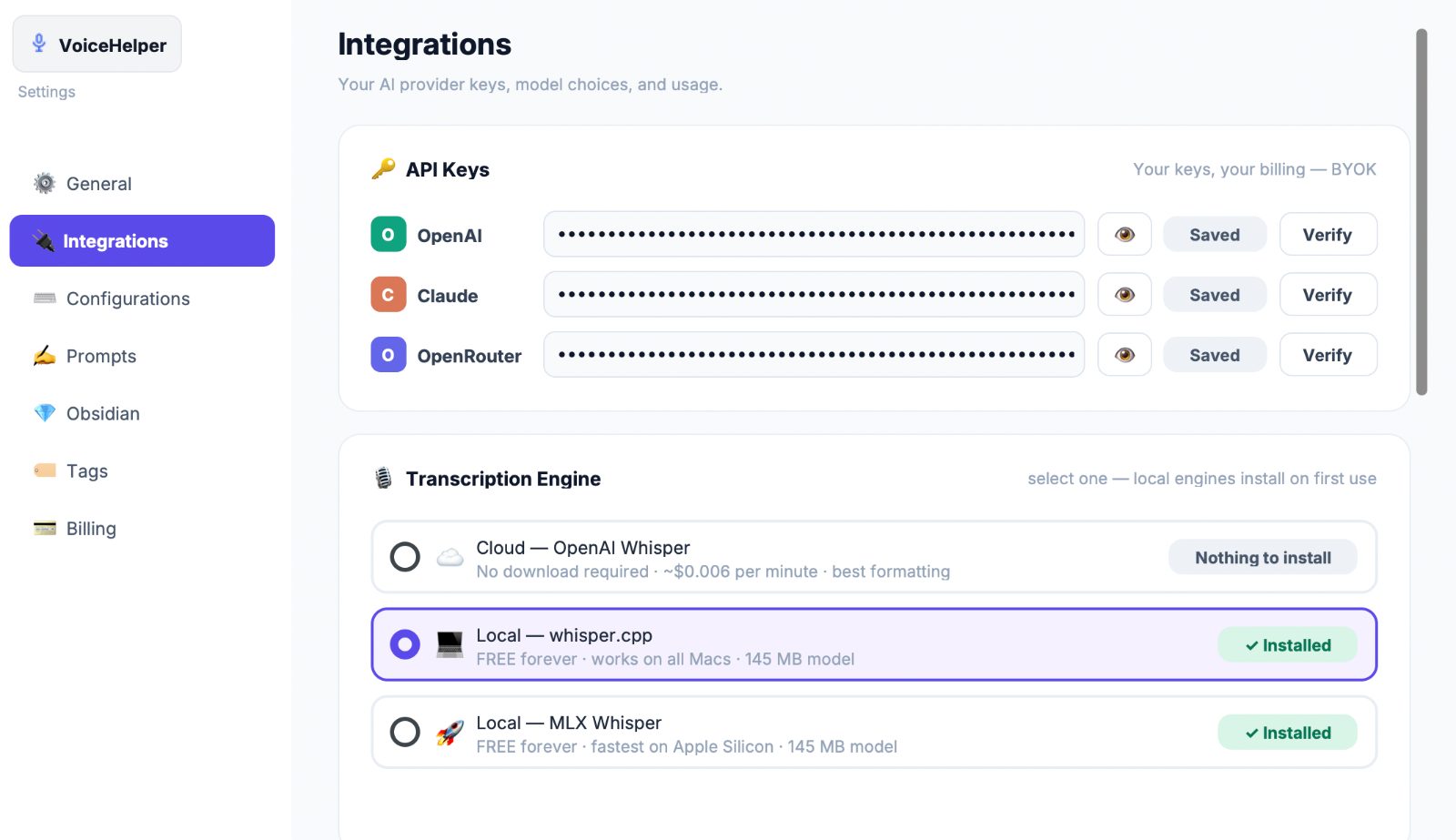
Bringing your own keys, and why
Originally every paid plan ran on my API keys. Then I did the arithmetic out loud and the number moved depending on which model a customer picked. Someone using a cheap model costs me almost nothing. Someone choosing the most capable model costs 10 to 30 times more, on a fixed monthly price.
So paid plans bring their own keys now. The trial still runs on mine, capped and deliberate. Customers get to pick their own quality-versus-cost trade, and I get a business where one enthusiastic user can’t quietly become my largest expense.
Where the AI was wrong, and what that cost
Confidently wrong, twice
The model once wrote code calling a function that didn’t exist anywhere in the project. Not a typo, a clean invention with plausible naming. It ran fine right up until that line executed.
The second one was subtler and more instructive. An API key kept failing verification, and the first fix was aimed at the wrong file. The code being patched wasn’t the code being executed, because the same logic had been duplicated in two other places years earlier. Fixing the wrong copy produced no change and a lot of confusion.
Both share a shape. The AI wasn’t reasoning badly. It was reasoning correctly from an incomplete picture of a codebase it hadn’t fully read.
What still required my judgement
The AI never once asked whether credentials belonged inside an app that customers download. I had to know to ask that. The answer, if you’re curious, is no, and the reason is that a bundle unpacks trivially, and a leaked sending credential means your domain gets blocklisted and every password reset silently stops arriving.
Same with pricing, plan structure, what to enforce, and how hard. Those aren’t technical questions with technical answers—they’re judgment calls that require human input, much like deciding whether to implement a speech to text app in an obsidian note or other accessibility tool. The model will produce a confident recommendation for any of them if you let it.
The discipline that kept it safe
One rule did most of the work: show me the change before making it. Every edit came with the current code, the proposed code, and what it would affect. I approved or I didn’t.
It’s slower. It also meant that in roughly 28,500 lines of Python, I knew what had changed and why. When something broke, I could name the last thing that moved using voice to text or other debugging methods—much like tracking edits in an obsidian note where every change is visible and documented. That’s not a small thing when your debugging tool is also your author.
Who this path suits
What you’ll still do by hand
You’ll make every decision that isn’t purely technical. Testing stays yours too, because the model can’t click your buttons. And you’ll read enough about code signing, permission models, and where secrets belong to know when an answer smells wrong.
The specs and prompts that built this app were dictated with the app itself, which is either good engineering or a closed loop I should be worried about. Grasppy held the project context between sessions, so each new conversation started knowing what the previous one had decided rather than confidently rediscovering it.
You should also expect to be wrong in public. The certificate I’m using is self-signed, which means the first launch requires a right-click and Open, and the whole thing expires in July 2027. Apple’s Developer Program and notarization are still on the list.
Where I’d start if I did it again
I’d sort out signing and packaging on day one, before writing a single feature. Every hour I spent on functionality while the app couldn’t be installed was an hour spent on something I couldn’t give anyone.
I’d also write down the non-technical decisions first. Pricing, what happens when a license expires, what belongs on a server. The model has an opinion about all of them, and it sounds exactly as confident as it does about syntax.
The rest of it held up better than I expected. I’m 50-something, I’ve spent 25 years in corporate high tech watching things get built by committees, and I got a signed, self-healing macOS app with licensing and payments out of a laptop and a lot of arguing. Not bad for someone whose main technical qualification is stubbornness.
Or you could keep the terminal window open. It worked fine for months, right up until I wanted someone other than me to use it.
FAQ
How do I get my existing voice recordings into VoiceHelper, or does it only work with live dictation?
VoiceHelper is built for live voice to text dictation only—you press the hotkey, speak in real time, and the text lands immediately in your obsidian note or other application. It doesn’t have a batch mode for processing audio files you recorded separately. If you have existing recordings, you’d need to play them back through your speakers and re-record them into this speech to text app, which defeats the purpose. For archived audio, you’re better off using a dedicated transcription service like Whisper or Rev. The three-minute limit per session is intentional: it keeps the app simple and prevents the failure mode where you forget you’re recording and hand the AI eleven minutes of your kitchen.
What happens to my voice recordings after VoiceHelper transcribes them—are they stored anywhere or sent to a server?
The recordings themselves are not stored. VoiceHelper sends your audio to an AI service for transcription and cleanup, then discards it. The final text lands in your Obsidian vault or wherever your cursor is, but the raw voice file doesn’t linger on your machine or get logged on a server you don’t control. You bring your own API keys (OpenAI, Anthropic, or similar), so the transcription happens through your own account and billing. Nothing routes through VoiceHelper’s infrastructure because there isn’t one. If you care about where your voice data goes, you control that choice entirely by picking which AI service to use.
Can I use VoiceHelper on Windows, or is it Mac-only forever?
It’s Mac-only right now. The entire app is built around macOS-specific features: global hotkeys that work across any window, the menu bar, launchd for self-healing restarts, and macOS code signing. Porting to Windows would mean rebuilding all of that from scratch using Windows equivalents, and I haven’t done it. If you’re on Windows, you could use the same underlying AI services directly, but you’d lose the one-key-anywhere simplicity that makes VoiceHelper useful. It’s possible in the future, but it’s not a priority.
If the AI gets something wrong during transcription, can I fix it and have VoiceHelper learn from the correction?
No, there’s no learning loop. If the AI mishears you or cleans up your text in a way you don’t like, you edit the result manually, but VoiceHelper doesn’t store that correction or use it to improve future transcriptions. Each dictation session is independent. What you can do is edit the writing prompts themselves in Settings—if you dislike how the AI writes in business mode, you rewrite that prompt and it applies to all future uses. The AI will still get things confidently wrong sometimes (it referenced a function that didn’t exist during development, and a mid-transcription freeze took genuine diagnosis), so you need to stay in the loop and catch mistakes before they matter.
Related posts
AI Agent Collaboration: Two Agents Work Your Plan - Claude Codex
Discover how AI agent collaboration works when two agents relay and refine your plans together until they reach agreement on the best approach.
AI Chat History Sync for Claude & Codex on Mac
Free Mac app to sync your AI chat history from Claude, Codex, and Cursor. Back up conversations and code in one click—never lose your work.
Chat Analysis AI: Six Months of Chats - Any Answer In 10 Seconds
Learn why chat analysis AI matters for organizing your conversations. Discover how to search and preserve your AI chats instead of losing valuable insights.
 Powered by GRASPPY