
AI Chat Session Management: Master Claude Code Debugging

The Claude code debugging idea I kept coming back to
Every session produces a summary worth keeping
I noticed this a few months into building GRASPPY. Most of my work happens inside conversations with Claude — refactoring, claude code debugging, reading through architecture, fixing bugs. A three-hour session ends with a real result: a commit, a new feature, a set of decisions about something I didn’t understand going in. And then I close the tab, and all of that goes somewhere I can’t reach.
Every session produces something worth keeping. What’s missing is effective ai chat session management — somewhere for it to go.
Why that summary shouldn’t live on disk or in a hidden file
The options I had at the time were all variations on “save it yourself.” Write a summary by hand. Let Claude Code write a summary and save it to a local file. Paste the summary into a notes app. In every case the summary was a text file, and text files have the same problem: they pile up, they sit in folders nobody opens, and the one you need at 4pm on a Thursday is the one that’s buried.
A summary isn’t useful if you can’t find it. A collection of summaries isn’t useful if you can’t search it, read it at a glance, or know what was true two weeks ago. This became especially frustrating during claude code debugging sessions, where the context and solutions discovered were often needed again later.
What I wanted instead
So the question was: where does the summary go, and how does it get there without me doing it?
I wanted one visible place. A tree I could open, a structure I could trust, a record that grew with me instead of away from me. And I wanted it to update automatically — not because manual work is beneath me, but because a process that only works when I remember to do it is the same as no process.
That idea became My Memory — a solution for ai memory automation that handles ai chat session management.
Recovered content from The Claude code debugging idea I kept coming back to
When it comes to AI chat session management, the end of the chat is the hardest part.
The day a session locked me out
The debug session that piled up
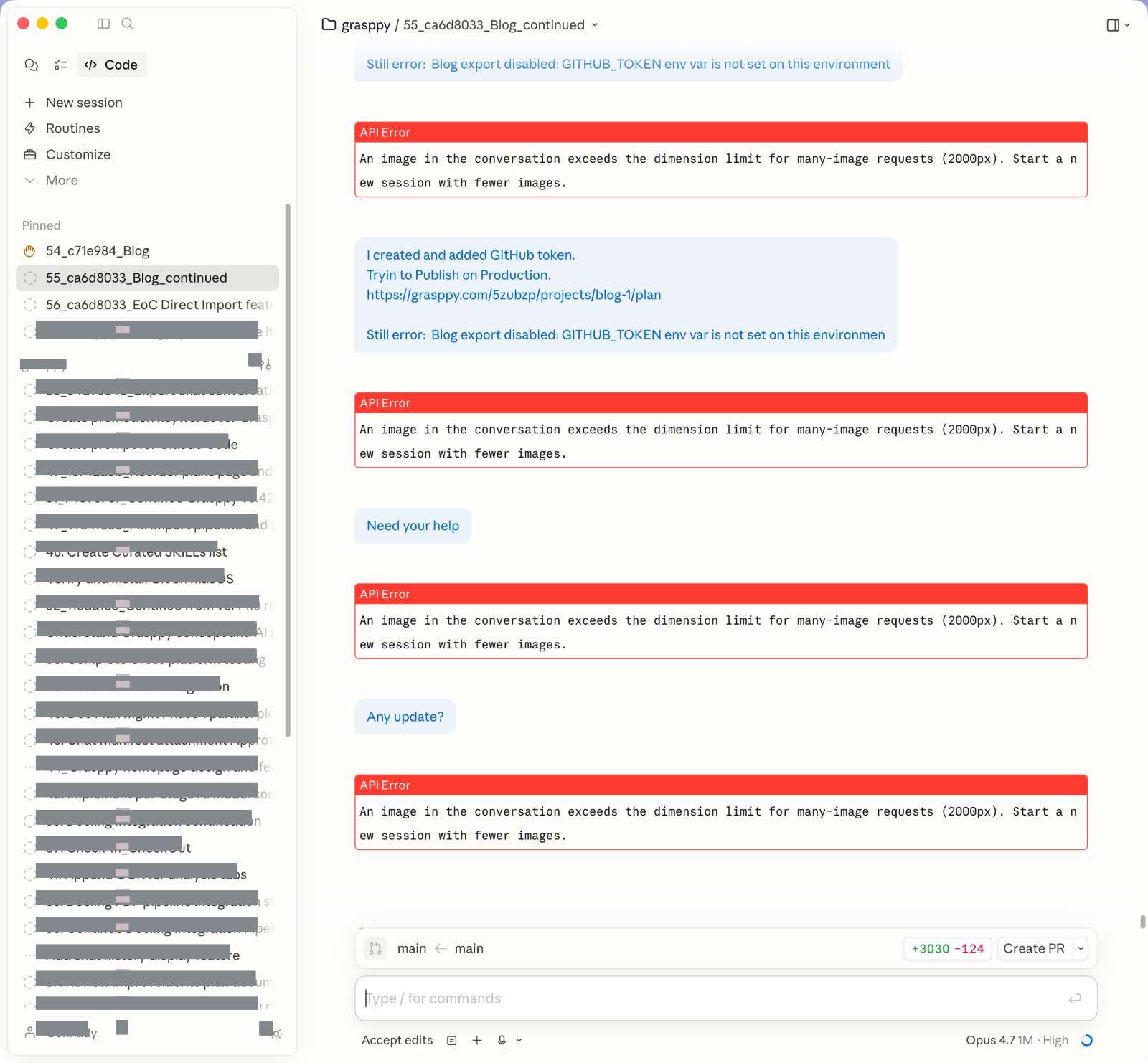
I was finishing the last step on the blog feature — getting a first post to publish to GitHub. The export function needed a GITHUB_TOKEN I hadn’t set on production. I added it, tried again, got a different error, captured the UI, adjusted, tried again. Normal debugging rhythm. Screenshots accumulating.
Then one attempt came back with something I hadn’t seen before:
An image in the conversation exceeds the dimension limit for many-image requests (2000px). Start a new session with fewer images.
I tried the next message. Same error. I rephrased the request. Same error. I sent a short text-only prompt with no attachments. Same error.
The claude code debugging session had effectively locked me out of continuing our conversation. This highlighted a critical gap in ai chat session management — when debugging sessions accumulate too many images, the AI loses the ability to maintain context continuity.
What the error actually meant
The limit is about Anthropic’s API, not about Claude’s attention. When a conversation has many images, the API enforces a stricter cap on each image’s dimensions than it does on single-image requests. Past some threshold of accumulated images, any one image with a side larger than 2000 pixels blocks the whole request.
One screenshot earlier in the session — I couldn’t easily tell which — had a side larger than the cap. A full-page capture from a Retina display will do it without trying. Once it was in the thread, it stayed there, making claude code debugging sessions particularly vulnerable to this issue. This highlights why ai memory automation becomes crucial for managing long-running conversations with accumulated context.
Why the session couldn’t recover
Every message to Claude replays the full conversation, every image included. The problematic screenshot was somewhere in the middle of the session, and I couldn’t remove it. There’s no “edit out this attachment” in Claude Code. So each new request sent the same conversation forward, hit the same image, and got rejected at the API gateway before Claude saw it.
I tried shorter prompts, no-image prompts, plain one-line questions. Same error. The session wasn’t thinking through the answer. The gate was closed. This is where effective ai chat session management becomes crucial—being able to remove problematic content or start fresh when needed.
Why the work wasn’t actually lost
This is the part that mattered. The Claude Code UI was frozen, but the JSONL file on disk — the full record of every turn — kept growing. Every attempt I made was recorded, including the ones that came back with the dimension error. The code changes, the file edits, the commits, the configuration — all preserved in that file, independent of whether the live chat could continue.
From there, the recovery was the same pattern the rest of this post is about. Export the JSONL. Read the last closure report if there was one. Open a fresh session, hand it the export and the report, and pick up. What would have been hours of lost debug state turned into a ten-minute handoff through effective ai memory automation.
Recovered content from The day a session locked me out
What AI Memory Automation Actually Is
A project you can open, read, and reorganize
My Memory is a project inside GRASPPY. Not a dotfile, not a folder on disk, not something hidden behind the model. You open it the same way you open any other project. It has parts, chapters, sections. You can read it, edit it, browse it, search it, share it. It’s yours.
That’s the first thing to understand, because most AI “memory” features are not this. They’re a list of facts the model decides to remember. You don’t see the list. You don’t curate it. You hope it’s right.
My Memory is the opposite of that. You can look at exactly what’s in it. You can add to it. You can remove the bits that don’t belong. Whether you’re doing claude code debugging or working on any other project, you have complete visibility and control over what the AI remembers through this ai chat session management system.
Two parts: curated side and session side
The project has two top-level parts.
The first part is My Memory — the curated side. This is where I keep what I know about the project: architecture notes, decisions I’ve made, conventions, rules I follow, lessons from past incidents. It’s written by hand or assembled from snapshots. It’s the part I review before important work, the part I read when I’ve forgotten why something was built a certain way.
The second part is End of Session. This is where every session’s summary lands automatically through ai memory automation. Each conversation I have gets its own chapter. Inside that chapter are the summaries from that conversation — usually two: a mid-session compaction (when the conversation got long and Claude summarized it to make room) and the end-of-chat closure report.
The two parts work differently on purpose. The curated side is slow and deliberate. The session side is fast and mechanical. Together they cover what I’ve decided and what I’ve done — present and history, side by side. This dual approach has proven especially valuable during claude code debugging sessions, where having both immediate context and historical patterns available makes all the difference in ai chat session management.
One chapter per conversation, grouped automatically
Every conversation I have with Claude gets a chapter in End of Session. The chapter is named after the session itself — a short identifier pulled from the conversation file. If I work for three hours and produce one closure report, the chapter has one section. If I work for six hours, hit the context window, trigger a compaction, and then produce a closure report, the chapter has two sections — the compaction and the closure, in order.
I never create these chapters by hand. They appear because I finished a session and pushed the summary in. That’s the ai chat session management automation.
Recovered content from What AI Memory Automation Actually Is
How the automation works
The end-of-session report I now expect from every ai chat session management interaction
I end every working session by asking Claude for a closure report. I have a prompt I reuse. The output is an eight-section document: current state, what’s working and what’s not, architecture decisions made, next steps, critical files, rules to remember, a handover summary for the next session, and a machine-readable marker at the end. The marker is the part that makes the ai memory automation possible — it’s a small block of text that includes the session ID, a timestamp, and a hash. Tools can read it. I can ignore it.
The closure report is saved as a markdown file on my machine. That’s the input to everything that comes next. This systematic approach to claude code debugging ensures continuity between sessions.
Dropping it into My Memory — one step, and it’s filed
I open My Memory. I click the Check-in button. I drag the closure report onto the drop zone. A preview appears showing me where the file will go: End of Session → EoC_{session} → EOC_{timestamp}. I click Import. The file is now a section in My Memory.
That’s it. No re-importing the conversation, no manually creating chapters, no pasting content into forms. One drop, one click, done.
If I drop five closure reports from five different sessions, each one goes to the right place — the system reads the session identifier inside each file and routes accordingly. This streamlined ai chat session management ensures that if one of them was already imported earlier, it’s flagged as a duplicate and skipped. If the chapter for a session doesn’t exist yet, it’s created. Whether I’m working on claude code debugging or any other project, the process remains consistent and reliable.
What Accept All does behind the scenes
The pattern is worth spelling out: the ai memory automation system reads the marker at the bottom of each closure report. The marker gives it three things — when the session ended, a hash that uniquely identifies this specific report, and the session the report belongs to. The first two are used for deduplication. The third decides which chapter the report joins.
This means I can drop closure reports in any order, in any batch, from any machine. I can drop reports I archived months ago. I can drop today’s report along with last week’s that I forgot about. The system sorts them into the right chapters and refuses to create duplicates, making ai chat session management completely flexible.
Recovered content from How the automation works
The problems I hit while building this
When the tool treated documentation about summaries as a summary itself
Getting the automation right took more iteration than I expected. Three of the problems were illustrative. Here’s the first.
I was writing documentation about the closure-report marker format — a page explaining what the marker is, how it’s structured, with an example. I dropped the documentation file into Check-in to review what it would look like once imported, and the system refused it. It had looked at the example inside my documentation, seen a real-looking marker, and classified the whole documentation file as a closure report.
The fix was narrow and specific. A real closure report ends with the marker — it’s the last thing in the file. A documentation file that mentions the marker puts it somewhere in the middle, as an example. So the detection logic was changed to scan only the last two kilobytes of the file. Documentation passes through. Real reports are still caught.
Why renaming a chapter should be safe (and why it wasn’t at first)
I wanted to rename one of my session chapters. The default name is a session identifier — a short hex string. Fine for the system, not great for me to recognize at a glance. I renamed one to something descriptive, like Blog Stage 2 work.
Then I dropped a new closure report from the same session. The system created a new chapter with the original identifier name, beside my renamed one. Now the session was split across two chapters. Nothing was lost, but everything was confusing.
The fix was a schema change: each chapter now stores the session identifier in a dedicated field, separate from its name. The importer looks up chapters by that field, not by display name. I can rename the chapter to anything I like, and the next import still lands in the right place. This approach makes ai memory automation and claude code debugging much more intuitive for users.
The moment I discovered a summary had been silently replaced by a placeholder
This one cost me an hour. I uploaded a closure report for a specific session through a different path in the product — an upload button on the analysis page, not the Check-in flow. It seemed to succeed. When I opened the resulting entry, the content was a short placeholder that read __OVERSIZED__1169.
What had happened: the upload button accepted not just markdown files but also raw conversation files. When a conversation file failed to parse cleanly, the code fell back to storing the entire raw conversation — over a megabyte of data. A downstream safety guard noticed the size and replaced the content with a placeholder so the page wouldn’t freeze. The original report was fine. The delivery pipe was not.
The fix had three pieces: reject conversation files at the upload step (they’re not closure reports), add a size limit that matches what the reader expects, and route the upload through the same automation that the Check-in flow uses. One delivery path, one validation, one guarantee. This kind of claude code debugging taught me to trace ai chat session management data flow more carefully.
Recovered content from The problems I hit while building this
What a week of sessions looks like in My Memory
Browsing a session I finished three days ago
I open My Memory and expand End of Session. I see a list of chapters, one per session. I recognize the sessions I’ve named — some by topic, some by feature. The ones I haven’t renamed still have their default identifiers, and that’s fine. I click into the session from three days ago. The closure report is there in full: what I was building, what I shipped, what decisions I made, what files I touched. Nothing has been truncated. Nothing has been lost to summarization.
Organizing the tree however makes sense
I rename chapters. I add prefixes for sorting. I group sessions by theme when they belong together. None of this breaks anything — the system tracks what each chapter actually is, independent of what I’ve called it. The display is mine to arrange, giving me complete control over my ai chat session management.
Whether I’m working on claude code debugging or exploring creative writing prompts, I can organize my conversations exactly how I think about them. This level of ai memory automation means I never lose track of important discussions or insights.
Picking up the next day knowing where I left off
At the start of the next session I open My Memory. I skim the most recent closure report. I read the handover summary. I check the critical-files list. Then I open the chat and tell Claude what I want to do. The first exchange is no longer “let me re-explain the project.” It’s the actual next step. This ai memory automation transforms how I work with Claude across multiple conversations, whether for claude code debugging or other development tasks. Effective ai chat session management makes the difference between starting fresh each time and building momentum across conversations.
Recovered content from What a week of sessions looks like in My Memory
What I know now that I didn’t
Why automation is the whole point
The full version of this feature could have shipped as a manual flow: write your closure report, save it to a folder, check it in one at a time, click through the preview, confirm. That would have worked. It also would have failed, because a manual process that works 80% of the time is worse than no process — the 20% you forget breaks the continuity the whole system depends on.
Automation isn’t a nice-to-have here. It’s the point. The value of My Memory scales with how complete it is. A memory that covers 40% of my sessions is a memory I can’t trust. A memory that covers every session I finish, because finishing a session drops its summary into the right place without me thinking about it, is a memory I can rely on.
My Memory fits in the larger picture
My Memory is one of three pillars GRASPPY is built on. The other two are the AI Project Brain (what GRASPPY extracts from any conversation, any platform) and Living Documentation (the long-form record of how the project actually works). My Memory is what ties the three together over time — the thing that grows with me, that remembers the specific path my work took, that answers “what did I decide about this last month?”
If you’re building something substantial with AI and you’ve ever closed a chat wondering whether anything you just did would survive the night, this is what I’d point you to.
Recovered content from What I know now that I didn’t
FAQ
What happens if I accidentally delete or lose a closure report file before importing it into My Memory?
The closure report is gone unless you have a backup. My Memory only stores what you import into it - it doesn’t automatically backup your local markdown files. However, if you still have the original conversation file (the JSONL that Claude Code saves), you can recreate the closure report by opening a new session and asking Claude to generate another summary from that conversation history. The machine-readable marker will be different, but the content will cover the same session.
Can I use this system with AI assistants other than Claude, like ChatGPT or other models?
The core concept works with any AI that can generate structured summaries, but the technical implementation is built specifically for Claude’s conversation format. The system expects JSONL files and looks for specific marker formats that Claude generates. You could adapt the approach by having other AIs generate similar closure reports with compatible markers, but you’d need to modify the import automation to handle different conversation file formats and summary structures.
How much storage space does My Memory typically use after months of sessions?
Each closure report is typically 2-8KB of markdown text, so even heavy users rarely exceed a few megabytes total. A year of daily 3-hour debugging sessions might generate around 50MB of memory data. The system is designed to store summaries, not full conversations, so storage grows much slower than you’d expect. The bigger consideration is organization - after 100+ sessions, good naming and grouping becomes more important than storage space.
What if I want to share specific sessions with team members or collaborators?
My Memory is a regular GRASPPY project, so you can share individual chapters or sections like any other project content. Each session chapter is self-contained with its closure reports, so you can export just the sessions relevant to a collaborator. However, the automation only works for your own imports - team members would need to manually add any sessions they want to contribute, since the system can’t automatically detect and import their closure reports.
Recovered Structural Content
Recovered content from AI Chat Session Management: Master Claude Code Debugging
Related posts
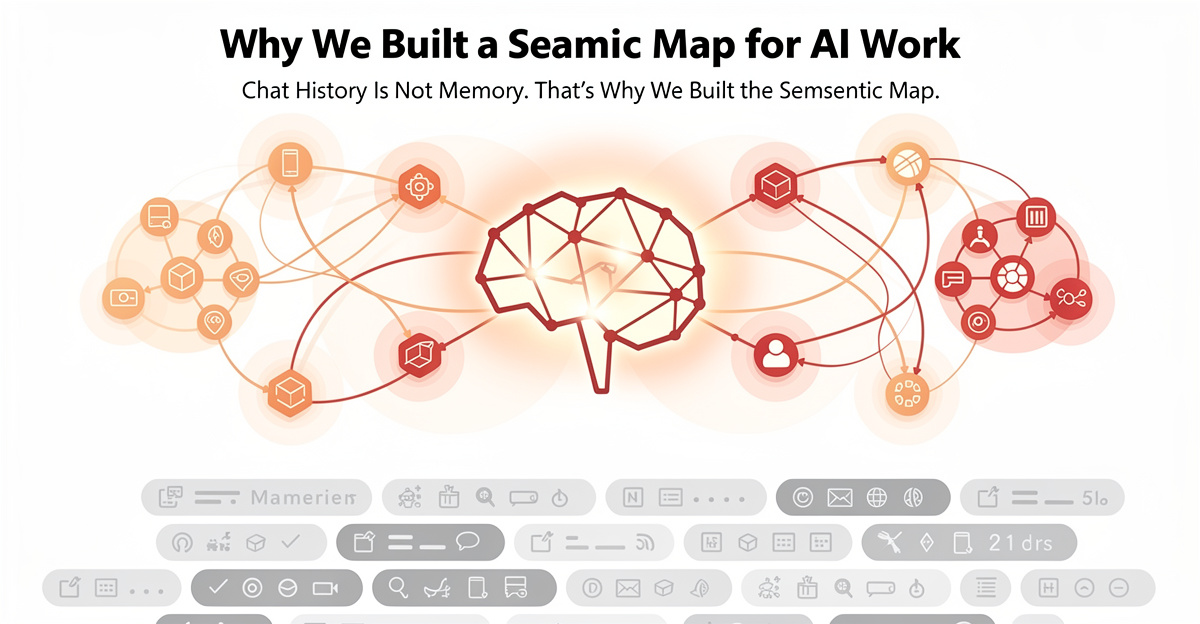
Why We Built a Semantic Map for Your AI Brain
See why we built a semantic map to power your AI brain. Organize semantic memories, surface connections instantly, and work smarter with structured knowledge.

The AI Workflow Stack Behind GRASPPY (And Why Simple Wins)
Discover the simple AI workflow stack powering GRASPPY's memory system. Learn why choosing straightforward tools over complex architectures delivers better results.

Why I Built an AI Second Brain for My Chat Conversations
Discover how I built an AI second brain to organize and search through my chat conversations, creating a personal AI wiki for better knowledge management.
 Powered by GRASPPY